Creating a Cake Request
The cake wizard guides you through 8 steps to describe your perfect cake. Matching sellers will then send you offers.
The steps run in this order: Servings → Occasion → Theme → Flavours → Dietary → Date → Delivery → Review. A progress bar at the top shows where you are; Next advances (disabled until the current step is valid) and the back arrow returns to the previous step. If you're logged in, the wizard pre-fills your saved preferences (servings, event type, delivery method, address, flavours).
Step 1: Servings
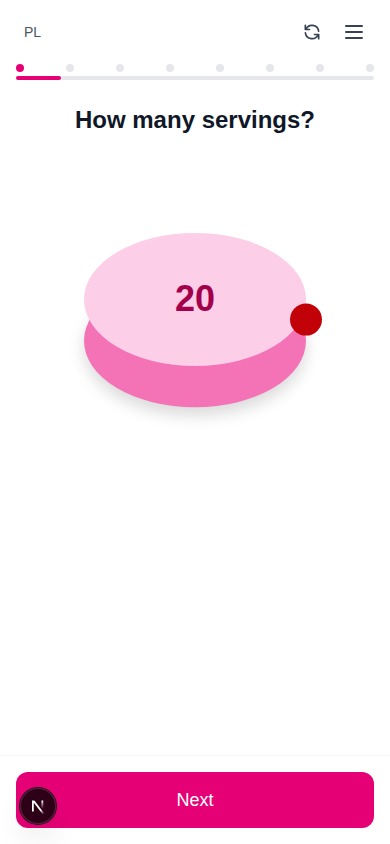
An interactive visual cake lets you specify how many people the cake should serve.
- Input: Number (1–100)
- Interaction: Drag the handle around the cake to adjust — the cake visual grows and shrinks with the serving count
Step 2: Occasion
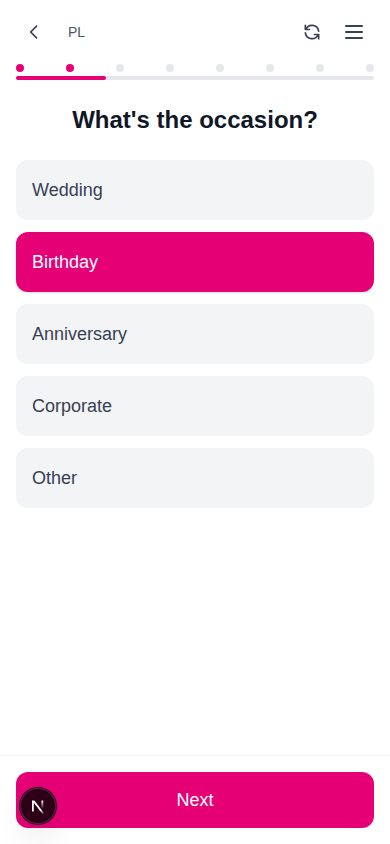
Select the occasion for your cake:
| Event | Description |
|---|---|
| Wedding | Wedding celebrations |
| Birthday | Birthday parties |
| Anniversary | Anniversary events |
| Corporate | Business events |
| Other | Custom event type (text input appears) |
Click one to select. If you choose "Other", a text field appears for your custom event type.
Step 3: Describe Your Dream Cake
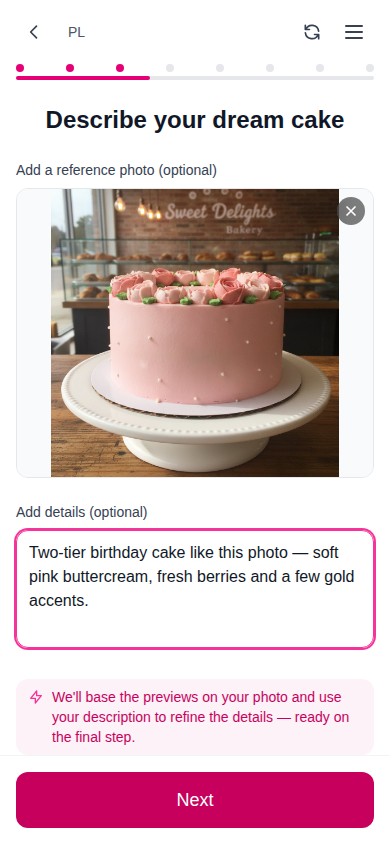
Tell CakeMarket what you want in either or both of two ways:
- Upload a reference photo — have a picture in mind (a cake you saw, a Pinterest save, a sketch)? Tap Upload a photo and the AI designs will follow it closely.
- Describe it in words — write a free-text description (e.g., "Colorful birthday cake with balloons and confetti").
You must provide at least one of the two; you can combine them — for example, upload a photo and add "…but in pastel blue instead of pink."
:::info How your inputs are used
- Photo + description → the AI concepts are built around your photo, using your words to refine the details.
- Photo only → your photo is used as the design directly — no AI generation runs.
- Description only → three AI concepts are generated from your text. :::
:::caution Photo moderation Every uploaded photo is automatically checked for inappropriate content before it is stored or shown to bakers. If an image is flagged, you'll be asked to choose a different one. :::
When you tap Next, CakeMarket starts generating the AI design concepts in the background — by the time you reach the review step, the visualisations are usually ready to pick from.
:::info Rate Limits
- Guests: 3 generations per session
- Registered users: 10 generations per day :::
Step 4: Flavour Preferences
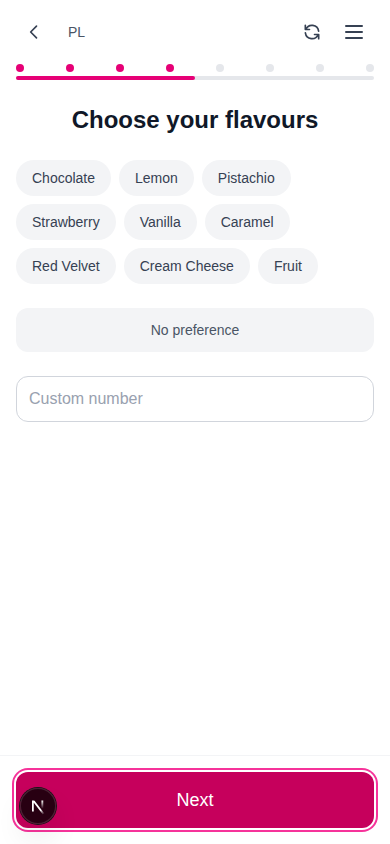
Select your preferred cake fillings (multiple selections allowed):
- Chocolate, Lemon, Pistachio, Strawberry, Vanilla, Caramel, Red Velvet, Cream Cheese, Fruit
Options:
- Select multiple fillings by tapping chips
- Toggle "No Preference" if you're open to any filling (clears individual selections)
- Add a custom filling via the text input field
Step 5: Allergies and Dietary Requirements
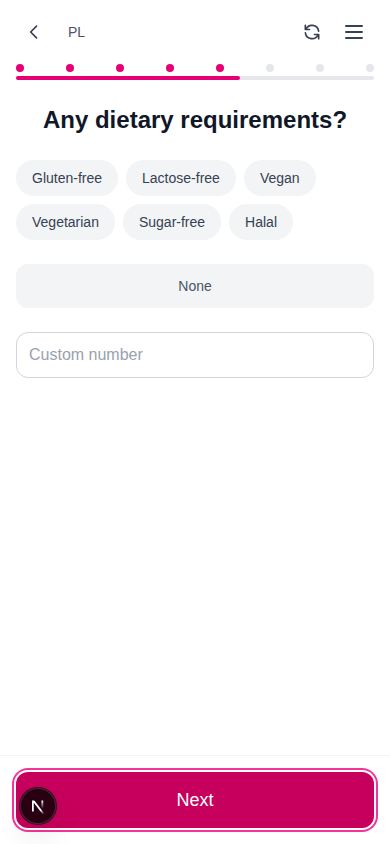
Specify any food allergies, intolerances or dietary needs (multiple selections allowed):
- Gluten-free, Lactose-free, Vegan, Vegetarian, Sugar-free, Halal
Options:
- Select multiple requirements by tapping chips
- Toggle "None" only if no food allergy, intolerance or dietary restriction applies
- Describe any allergy, intolerance or other custom requirement in the text field
Step 6: Date
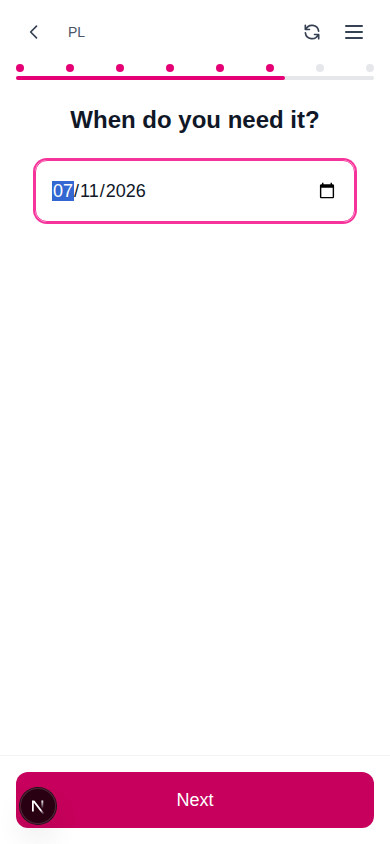
Pick your desired delivery/pickup date using the date picker.
The earliest available date is tomorrow. Same-day orders are not supported.
Step 7: Pickup or Delivery
Choose how you want to receive your cake. Both methods ask for your address — for delivery it's where the cake is brought; for pickup it's used to find bakeries near you and to show the distance on each offer.
| Delivery | Pickup |
|---|---|
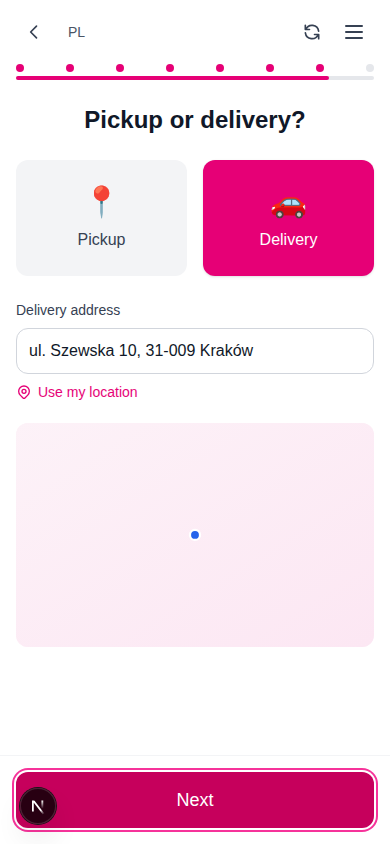 | 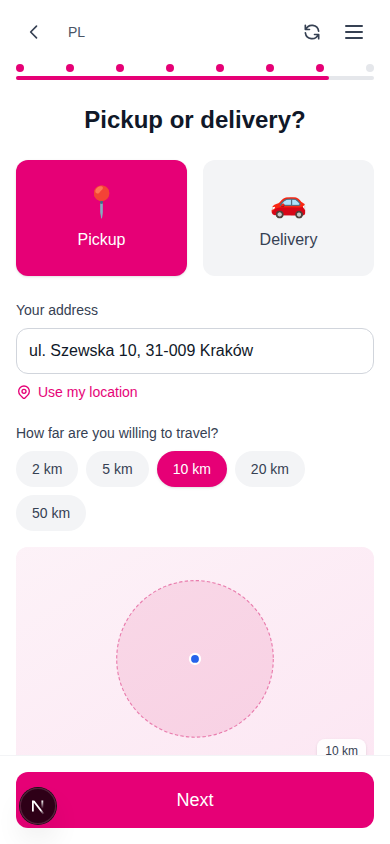 |
Your Address
- Autocomplete: Start typing and pick a suggestion — this captures exact coordinates for distance matching
- Use my location: Tap the location link to fill the address from your device's GPS
- A map preview shows your position once coordinates are set
Pickup Travel Radius
For pickup, additionally choose how far you're willing to travel: 2 / 5 / 10 / 20 / 50 km (default 10 km). The map draws the radius circle, and only bakeries inside it will receive your request.
Step 8: Review & Submit
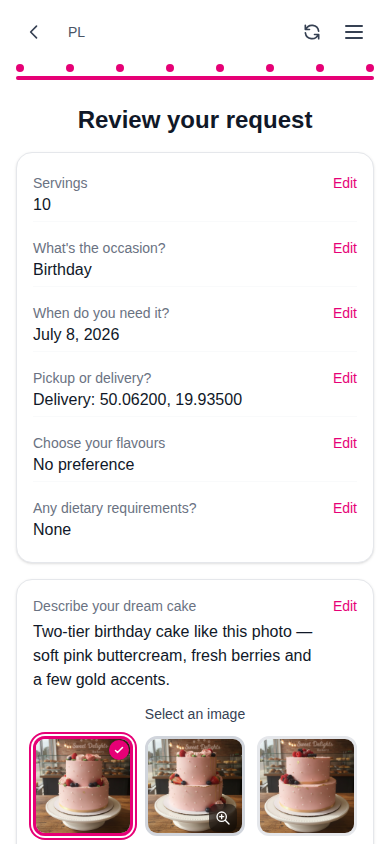
The final step shows a summary of all your selections with the ability to edit any field.
Summary Cards
Each section (servings, occasion, date, delivery, flavours, dietary, theme) is shown with an Edit link that jumps back to that step.
Design Concepts
The AI-generated visualisations appear here — the first is pre-selected. If you uploaded a reference photo, the concepts are modelled on it. Tap another to choose it, use the zoom icon to preview full-size, or Regenerate for new options. (If you uploaded a photo without a description, your own photo is shown here as the design.)
Available Bakers
A card shows how many bakeries in your area match your criteria. If fewer than 3 match, you'll see suggestions to improve your reach:
- Switch from delivery to pickup (or widen your pickup radius)
- Shift your desired date
- Relax dietary restrictions
Submitting
Click "Submit Request" to send your request to matching sellers.
- The button is disabled if no sellers match or no design image is selected
- On success, you're redirected to the Waiting Room
Reordering
If you've ordered before, you can reorder from your orders page:
- Click "Reorder" on a completed order
- The wizard pre-fills your previous order's details and jumps to the review step
- Pick a new date and adjust anything else before submitting
- The request is targeted to the same bakery
Starting Over
The reset icon in the wizard header clears your progress (after confirmation) and returns you to the welcome screen — useful if you want to begin a completely different request.